
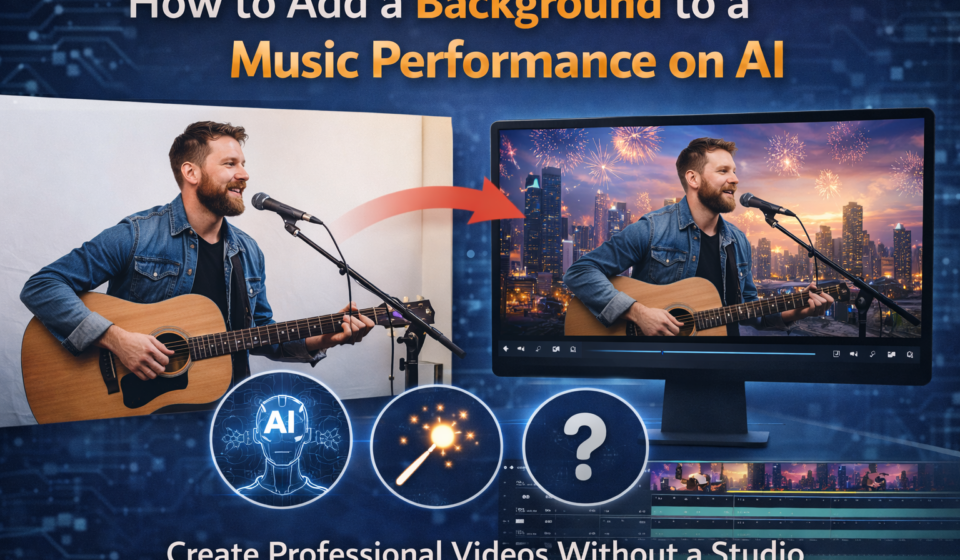
Add a background to a music performance on ai
If you want to Add a background to a music performance on ai, you are in the right place. Musicians and content creators today use AI tools to make their videos look professional. You no longer need an expensive studio or a green screen setup. AI technology has changed the game completely. In this guide, you will learn everything step by step. We will cover tools, techniques, tips, and common questions. So let us get started right away.
Why Adding a Background to a Music Performance Matters
Your background tells a story before you even play a single note. A plain wall or a messy room kills the vibe of your music video instantly. A well-chosen background sets the mood for your audience. It makes your performance look polished and professional. Viewers stay longer when visuals match the energy of the music. AI tools now make this process fast, easy, and affordable.
Think about your favorite music videos on YouTube. The backgrounds always match the song’s mood perfectly. A rock performance might show a dark, dramatic stage. A pop song might feature a colorful, vibrant background. AI helps you create these visuals without spending thousands of dollars. That is a huge win for independent musicians and creators.
How AI Technology Works for Music Video Backgrounds
AI uses advanced machine learning models to detect your body in a video. It separates you from your original background automatically. Then it replaces that background with your chosen image or video. This process happens in seconds with modern AI tools. You do not need any technical skills to use these tools. The AI does all the heavy lifting for you.
The technology behind this is called background segmentation. AI models analyze each frame of your video carefully. They identify where your body ends and the background begins. Then they apply a new background seamlessly. High-quality AI tools handle hair, instrument edges, and movements accurately. The result looks natural and professional without any manual editing.
Best AI Tools to Add a Background to a Music Performance
There are many AI tools available for musicians today. Each tool has different features, pricing, and quality levels. Choosing the right tool depends on your needs and budget. Here is a comparison of the best options available right now.
| AI Tool | Best For | Background Type | Free Plan | Ease of Use |
|---|---|---|---|---|
| Runway ML | Professional video editing | Image and Video | Yes (limited) | Moderate |
| Unscreen | Quick background removal | Image and Video | Yes (watermark) | Very Easy |
| Adobe Firefly | Creative AI backgrounds | AI-generated images | Yes (limited) | Easy |
| CapCut AI | Social media content | Image and Video | Yes | Very Easy |
| Pika Labs | AI video generation | AI-generated video | Yes (beta) | Moderate |
| Wondershare Filmora | Full video editing | Image and Video | Yes (watermark) | Easy |
| KineMaster | Mobile video editing | Image | Yes (watermark) | Easy |
Each of these tools gives you a unique experience. Let us explore the most popular ones in detail below.
Runway ML: The Professional’s Choice
Runway ML is one of the most powerful AI video tools available. It offers a background removal feature that works with precision. You simply upload your music performance video. Then Runway detects your body and removes the background. After that, you choose a new background from their library or upload your own.
Runway also lets you generate AI backgrounds using text prompts. You type something like “dark concert stage with lights.” The AI creates a matching background for your video. This is perfect for musicians who want custom, unique visuals. The free plan has limited exports, but the paid plan is worth it for serious creators.
CapCut AI: Best Free Option for Musicians
CapCut is a free video editing app with strong AI features. It works on both mobile and desktop platforms. The background removal tool in CapCut is fast and accurate. You upload your video and tap the background removal button. The AI removes the background in seconds. Then you add any image or video as your new background.
CapCut also offers a library of free background templates. These include concert stages, neon lights, and music-themed visuals. This makes it a perfect choice for beginners. You do not need editing experience to create great results. Many musicians on TikTok and Instagram use CapCut for their content.
Adobe Firefly: AI-Generated Backgrounds for Music Videos
Adobe Firefly is Adobe’s AI tool for generating creative visuals. You can use it to create stunning custom backgrounds for your music performance. You type a description of the background you want. Firefly generates a high-quality image in seconds. Then you use this image in Adobe Premiere or any editing software.
Firefly backgrounds look cinematic and unique. No one else will have the same background as you. This gives your music video a truly original look. Adobe also integrates Firefly with Photoshop and Premiere Pro. This makes the workflow smooth for creators already in the Adobe ecosystem.
Step-by-Step Guide: How to Add a Background to a Music Performance on AI
Let us walk through the complete process using CapCut as our example. This is the easiest tool for beginners to start with today.
Step 1: Record Your Music Performance
Record your performance against a simple, plain background. A white or light-colored wall works best. Good lighting is very important for clean background removal. Natural light or a ring light gives the best results. Avoid busy or patterned backgrounds during recording.
Step 2: Upload Your Video to CapCut
Open CapCut on your phone or desktop. Start a new project and upload your recorded video. The app will import the video to your editing timeline. Make sure the video resolution is at least 1080p for best results. Higher resolution videos give cleaner AI background removal.
Step 3: Use the AI Background Removal Tool
Find the “Remove BG” or “Background” option in the editing toolbar. Tap it and let the AI analyze your video. This usually takes a few seconds depending on video length. The AI will remove your original background completely. You will see yourself isolated against a transparent background.
Step 4: Add Your New Background
Now select your new background from the library or upload your own. You can use a static image, a video clip, or an AI-generated background. Position the background layer below your video layer in the timeline. Adjust the size and position if needed. Preview the result to make sure everything looks right.
Step 5: Export and Share Your Video
Once you are happy with the result, tap the export button. Choose 1080p or 4K resolution for best quality. Save the video to your device. Then share it on YouTube, Instagram, TikTok, or any platform you use. Your professional-looking music performance is now ready.
Tips to Get the Best Results When Using AI Backgrounds
Getting great results requires more than just using the right tool. Small details make a big difference in the final output. Here are some practical tips to improve your AI background videos.
Lighting is everything. Good lighting separates you clearly from the background. Use front lighting to illuminate your face and body evenly. Avoid backlighting because it creates shadows that confuse AI tools. A ring light is an affordable and effective option for musicians.
Wear solid-colored clothing. Avoid wearing clothes that match your background color. If your wall is white, do not wear a white shirt. The AI might accidentally remove parts of your clothing. Bright or contrasting colors give the AI a clear difference to work with.
Choose backgrounds that match your music genre. A classical musician looks great against a grand hall background. An EDM artist fits well with neon lights and digital visuals. A jazz musician shines against a dimly lit lounge setting. Matching the background to your genre strengthens your visual identity.
Keep your movements smooth. Fast or sudden movements can cause AI tracking errors. The background might flicker or glitch at the edges. Smooth, deliberate movements give the AI time to track you accurately. This results in cleaner and more professional-looking videos.
Common Problems and How to Fix Them
Even with great AI tools, you might face some challenges. Here are the most common problems and their solutions.
Problem: Edges look blurry or choppy. This happens when the background and clothing colors are too similar. Re-record with better contrast between you and your background. Adjust the edge refinement settings in your AI tool.
Problem: The background flickers during the video. This usually happens with fast movements or poor lighting. Re-record with steady lighting. Use a tripod to stabilize your camera for cleaner results.
Problem: Instrument edges are not clean. Guitars, violins, and other instruments can confuse AI tools. Use a tool with advanced edge detection like Runway ML. Manually touch up the edges if your tool allows frame-by-frame editing.
AI Background Ideas for Different Music Genres
Choosing the right background makes a big difference. Here are creative background ideas for different music styles.
| Music Genre | Suggested AI Background |
|---|---|
| Rock | Dark stage with dramatic spotlights |
| Pop | Colorful confetti or neon city at night |
| Jazz | Dimly lit lounge or vintage brick wall |
| Classical | Grand concert hall or elegant library |
| EDM | Digital particles and neon light shows |
| Hip Hop | Urban street scene or graffiti wall |
| Country | Open field or rustic barn at sunset |
| R&B | Soft purple or pink studio lighting |
How AI Backgrounds Help Musicians Grow Online
Using AI backgrounds is not just about looking good. It directly helps your music career grow online. Videos with professional backgrounds get more views and shares. Viewers are more likely to follow creators who invest in their visual presentation.
AI backgrounds also help you stay consistent with your brand. You can use the same background style across all your videos. This builds a recognizable visual identity for your channel. Fans start associating certain visuals with your music. That brand recognition is extremely valuable for growing your audience.
Social media algorithms also favor high-quality content. A well-produced music video with a clean background performs better. It gets recommended more often to new viewers. More recommendations mean more subscribers and followers. AI backgrounds are a simple but powerful tool for growing your online presence.
Free vs Paid AI Tools for Music Background Generation
Many musicians start with free tools and upgrade later. Here is what you can expect from free and paid options.
Free tools like CapCut and Unscreen give you basic background removal. They work well for social media content. However, they often add watermarks to your exported videos. The background quality is good but not perfect for professional productions.
Paid tools like Runway ML and Adobe Firefly offer higher quality output. They give you more control over edge refinement and background customization. You can export in 4K without watermarks. For serious musicians and content creators, the investment pays off quickly.
Conclusion
Adding a background to a music performance using AI is easier than ever before. You do not need expensive equipment or a professional studio. AI tools give every musician the power to create stunning visuals at home. Choose the right tool for your budget and skill level. Follow the step-by-step process we shared above. Pay attention to lighting, clothing, and background selection. Your music deserves a great visual presentation. Start experimenting with AI backgrounds today and watch your content level up completely.
Frequently Asked Questions (FAQ)
Q1: Can I add a background to a music performance on AI for free?
Yes, you can use free tools like CapCut and Unscreen. They offer background removal without any cost, though some add watermarks to exports.
Q2: Do I need a green screen to use AI backgrounds for music videos?
No, you do not need a green screen at all. AI tools automatically detect and remove your background using machine learning technology.
Q3: Which AI tool is best for adding a background to a music performance?
CapCut is best for beginners because it is free and easy to use. Runway ML is best for professional-quality results with advanced features.
Q4: Can I use a video as a background instead of a static image?
Yes, most AI tools support both image and video backgrounds. You can use animated stages, light shows, or any video clip as your background.
Q5: How do I improve edge quality when using AI background removal?
Use good lighting and wear clothing that contrasts with your background. Higher-resolution recordings also give cleaner AI edge detection results.
Q6: Does AI background work well with musical instruments?
It works well in most cases. Complex instruments like violins or guitars may need slight manual touch-up for perfect edge results.
Q7: Can I use AI-generated backgrounds for commercial music videos?
Yes, most AI tools allow commercial use of generated backgrounds. Always check the specific tool’s licensing terms before publishing commercially.
Q8: What video resolution should I record in for best AI background results?
Record in at least 1080p resolution. Higher resolution gives the AI more detail to work with and produces cleaner background removal.
Q9: Can I add a background to a live music performance video on AI?
Yes, you can process any pre-recorded performance video using AI tools. Some platforms even support real-time background replacement during live streams.
Q10: Is AI background replacement better than a green screen?
AI background replacement is more convenient and accessible than a green screen. Green screens still offer slightly more precision for very high-end productions.



[…] more about ” Add a background to a music performance on ai […]