
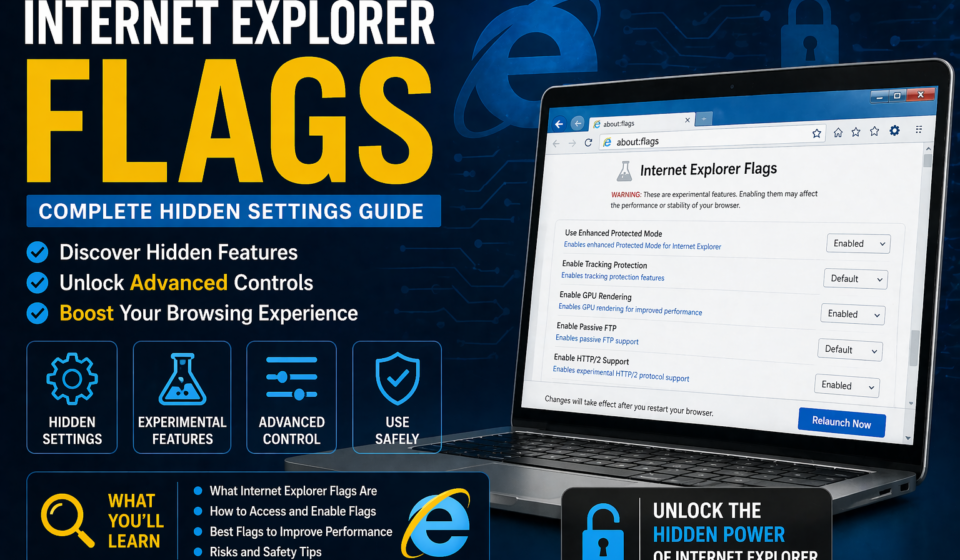
Internet Explorer Flags: Complete Hidden Settings Guide
Introduction
If you have ever wondered what secret settings are hiding inside your browser, then internet explorer flags are exactly what you need to explore. These are hidden, experimental features that Microsoft built into Internet Explorer. They allow advanced users to toggle on or off certain browser behaviors. Most regular users never find these settings. But once you know where to look, you unlock a whole new level of control over your browsing experience. This guide covers everything from what these flags are to how you use them safely.
What Are Internet Explorer Flags?
Internet Explorer flags are hidden configuration switches inside the browser. They control experimental or advanced features that Microsoft did not expose in the main settings panel. Think of them as backstage controls for your browser. Some flags enable features still in testing. Others let you disable things that slow your browser down.
These flags existed in Internet Explorer versions 6 through 11. Microsoft used them internally during development. Over time, power users discovered them and started using flags to customize their experience. They are not advertised or officially supported for regular users. That is why most people never hear about them.
Flags differ from normal browser settings. Normal settings are polished and safe for everyone. Flags are raw, experimental, and sometimes unstable. Using them incorrectly can cause your browser to behave oddly. However, when used correctly, they give you incredible control.
Where to Find Internet Explorer Flags
Finding these hidden settings takes a few steps. Internet Explorer does not have a single “flags” page like Chrome does with chrome://flags. Instead, IE scatters its hidden settings across multiple locations.
Method 1: Internet Options Advanced Tab
The most accessible location is the Internet Options panel. You reach it through the Tools menu or the gear icon. Click on the Advanced tab. You will see a long list of checkboxes. Many of these are essentially flags. They control security, rendering, multimedia, and browsing behavior.
Method 2: Registry Editor
The Windows Registry holds deeper IE flags. You access it by pressing Windows Key plus R, then typing regedit. Navigate to HKEY_CURRENT_USER\Software\Microsoft\Internet Explorer. Here you find keys that control behaviors not visible anywhere in the browser UI. These are true low-level flags.
Method 3: Group Policy Editor
For enterprise environments, administrators use the Group Policy Editor. This is where IT teams enforce or restrict certain IE flags across all computers in a network. Access it by running gpedit.msc from the Run dialog.
Method 4: F12 Developer Tools
The F12 Developer Tools in Internet Explorer 8 and above include a Document Mode selector. This is a flag-like tool. It lets you switch how IE renders pages, simulating different browser versions.
Types of Internet Explorer Flags
Not all IE flags work the same way. They fall into several categories based on what they control.
| Flag Category | What It Controls | Where to Find It |
|---|---|---|
| Security Flags | ActiveX, scripting, downloads | Internet Options > Security |
| Rendering Flags | Document mode, compatibility view | F12 Tools / Registry |
| Performance Flags | Caching, connection limits | Advanced Tab / Registry |
| Privacy Flags | Cookies, tracking, InPrivate | Privacy Tab / Advanced Tab |
| Compatibility Flags | Enterprise Mode, legacy sites | Registry / Group Policy |
| Developer Flags | Script debugging, error display | Advanced Tab |
Security Flags
Security flags are the most important category for most users. They control whether IE runs ActiveX controls. They also manage Java applets, scripting, and file downloads. Turning certain security flags off can make some old websites work. But it also opens security holes. Always weigh the risk carefully before changing these.
Rendering and Compatibility Flags
These flags control how IE draws web pages. Internet Explorer introduced document modes starting from IE8. You can force IE to render pages using older engine versions. This helps with legacy enterprise applications. The Compatibility View list is essentially a collection of rendering flags applied per website.
Performance Flags
Performance flags adjust how IE handles resources. You can change the number of simultaneous connections to a server. You can also control how aggressively IE caches content. These tweaks can speed up browsing on slower networks. However, changing them incorrectly may cause pages to load improperly.
Privacy Flags
Privacy flags manage what data IE shares with websites. You can toggle third-party cookie blocking. You can also enable or disable the InPrivate Browsing feature through registry flags. These are useful for privacy-conscious users who want more control.
How Internet Explorer Flags Work Technically
Under the hood, IE flags function as registry values or policy settings. When you enable a flag, Windows writes a value to the registry. Internet Explorer reads this value at startup or when loading a page. The browser then adjusts its behavior accordingly.
Some flags apply globally to all websites. Others apply only to specific security zones like the Internet zone or the Local Intranet zone. Internet Explorer divides the web into four security zones. Each zone can have its own set of flags. This zone-based system makes IE flags more granular than most browsers.
The flag values are usually DWORD entries in the registry. A value of 0 typically means disabled. A value of 1 or 3 typically means enabled. Some flags use specific numeric codes defined in Microsoft’s documentation. This makes manual registry editing risky for beginners.
Important Internet Explorer Flags You Should Know
Here are some of the most useful and commonly referenced IE flags. Each one serves a specific purpose.
Enable or Disable ActiveX Controls
ActiveX controls were a major feature of Internet Explorer. They allowed rich applications to run inside the browser. But they also became a massive security risk. The ActiveX flag lets you control whether IE runs these controls. You find this in Internet Options under the Security tab. Click on Custom Level to see detailed ActiveX flags.
Document Mode Flags
Document mode flags tell IE which rendering engine version to use. Enterprise users rely on these heavily. Many old internal applications require IE7 or IE8 rendering. By setting the document mode flag, you force IE to use an older engine. This keeps old apps working without upgrading them.
Enable Enhanced Protected Mode
Enhanced Protected Mode is a security flag introduced in IE10. It runs the browser in a sandboxed environment. This makes it harder for malicious code to escape the browser. You toggle this in the Advanced tab of Internet Options. Enabling it improves security but may break some extensions.
Disable Script Debugging
This flag tells IE to ignore JavaScript errors. Many web pages have minor script errors that trigger annoying dialog boxes. Disabling script debugging through the Advanced tab stops these popups. It makes browsing smoother on older or poorly coded websites.
TLS and SSL Flags
These flags control which encryption protocols IE uses. You can enable TLS 1.2 or disable old SSL versions. You find them in the Advanced tab. Enabling TLS 1.2 and disabling SSL 2.0 and SSL 3.0 improves your security significantly.
Internet Explorer Enterprise Mode: A Special Flag System
Enterprise Mode deserves its own section. It is one of the most powerful flag systems in Internet Explorer 11. Microsoft built it specifically for businesses. Enterprise Mode allows IT departments to maintain a list of websites. Those websites automatically open in compatibility mode.
You enable Enterprise Mode through Group Policy or the registry. The key is HKEY_LOCAL_MACHINE\SOFTWARE\Policies\Microsoft\Internet Explorer\Main\EnterpriseMode. Once enabled, admins create an XML site list. Each entry in that list can specify a document mode. This is essentially a macro-level flag system managing hundreds of flags at once.
Enterprise Mode was a lifeline for organizations still running legacy web applications. It let them use Internet Explorer 11 as the main browser. At the same time, they kept backward compatibility for old internal tools.
Risks of Changing Internet Explorer Flags
Changing IE flags without understanding them carries real risks. Here are the main dangers you should know about.
Browser Instability: Some flags, especially deep registry ones, can crash IE. If you set a wrong value, the browser may refuse to open. You would need to restore the registry entry manually.
Security Vulnerabilities: Disabling security flags opens attack surfaces. Malicious websites can exploit disabled protections. Never disable security flags just to make a website work unless you fully trust that site.
Compatibility Issues: Enabling some flags breaks other features. Turning on Enhanced Protected Mode, for example, disables 32-bit add-ons. Always test flag changes in a non-critical environment first.
No Official Support: Microsoft does not support users who break things by editing hidden flags. If you brick your IE installation, you are on your own. Back up your registry before making any changes.
How to Safely Edit Internet Explorer Flags
Follow these steps to change IE flags safely.
Step 1: Always back up your registry first. Open regedit, click File, then Export. Save a backup copy before touching anything.
Step 2: Use Internet Options for surface-level flags. These are safer because the UI adds validation. You are less likely to enter an invalid value.
Step 3: Research the exact registry key before editing it. Microsoft’s official documentation lists valid values for each key. Do not guess.
Step 4: Change one flag at a time. Test after each change. This way, you know exactly which flag caused any problems.
Step 5: Restart Internet Explorer after making changes. Some flags only take effect after a full browser restart.
Internet Explorer Flags vs Chrome Flags
Many users wonder how IE flags compare to Chrome’s chrome://flags page. The differences are significant.
| Feature | Internet Explorer Flags | Chrome Flags |
|---|---|---|
| Access Method | Registry, Internet Options, Group Policy | chrome://flags URL |
| User Friendliness | Low, mostly technical | High, built-in UI |
| Number of Flags | Moderate | Hundreds |
| Reset Option | Manual registry restore | One-click reset all |
| Documentation | Scattered, often outdated | Regularly updated |
| Stability Risk | Higher | Lower |
Chrome made browser flags accessible to everyone. Internet Explorer kept them hidden and technical. This reflects the broader design philosophy of each browser. IE was built for enterprise control. Chrome was built for developer experimentation.
Internet Explorer 11 Specific Flags
IE11 was the last version of Internet Explorer. Microsoft introduced several new flags with it.
The Enhanced Protected Mode flag became more robust in IE11. The new F12 developer tools added more document mode options. Microsoft also added flags for WebGL, CSS3 features, and HTML5 elements. These were experimental at the time. Some worked well, others caused rendering issues.
IE11 also introduced the Enterprise Mode Site List flag. This single flag, when enabled, unlocked the entire Enterprise Mode system. It was arguably the most impactful flag in IE11’s history for business users.
Why Internet Explorer Flags Still Matter Today
You might wonder why IE flags matter now. Microsoft retired Internet Explorer in June 2022. Most users moved to Microsoft Edge. However, IE flags still matter for several reasons.
Many large organizations still use Internet Explorer internally. Banking systems, government portals, and hospital software often rely on IE. These environments use IE flags daily. IT professionals managing these systems need to understand flags deeply.
Additionally, Microsoft Edge includes an Internet Explorer compatibility mode. This mode essentially uses IE11’s engine for specific websites. The flags that governed IE11 behavior still apply inside this compatibility layer. So IE flags have not completely disappeared.
Understanding IE flags also teaches you about browser architecture in general. The concepts of security zones, rendering modes, and policy-based control apply to all modern browsers. Learning IE flags gives you a foundation for understanding browser internals everywhere.
Frequently Asked Questions
Q1. What are Internet Explorer flags?
Internet Explorer flags are hidden settings that control advanced and experimental browser features. They live in the Windows Registry, Internet Options, and Group Policy Editor. Most users never see them, but they offer deep control over IE’s behavior.
Q2. How do I access Internet Explorer flags?
You access basic IE flags through Internet Options in the Advanced tab. For deeper flags, you use the Windows Registry Editor under the Internet Explorer keys. Enterprise environments use Group Policy to manage flags across multiple computers.
Q3. Can changing IE flags break my browser?
Yes, changing the wrong registry-level flag can make IE unstable or prevent it from opening. Always back up your registry before editing flags. Start with Internet Options flags, which are safer, before moving to registry edits.
Q4. What is the most important IE flag for security?
The Enhanced Protected Mode flag is one of the most important security flags. It sandboxes the browser process, making it harder for malware to escape. You find it in the Advanced tab of Internet Options in IE10 and above.
Q5. Are Internet Explorer flags the same as Chrome flags?
No, they are different. Chrome flags are accessible through chrome://flags with a clean user interface. IE flags are scattered across the Registry, Internet Options, and Group Policy. Chrome flags are more user-friendly and easier to reset.
Q6. Do IE flags still work in Microsoft Edge?
Some IE flags work inside Edge’s Internet Explorer compatibility mode. When Edge loads a site in IE mode, it uses the IE11 engine. The flags governing IE11’s rendering and security behavior still apply in that context.
Q7. What is Enterprise Mode in Internet Explorer?
Enterprise Mode is a special IE11 feature controlled by a registry flag. It lets IT admins maintain a site list where each site loads in a specific document mode. This keeps old web applications working without code changes.
Q8. Is it safe to disable ActiveX through IE flags?
Disabling ActiveX through IE flags is generally safer than enabling it. ActiveX controls have been a major source of security vulnerabilities. If you do not need ActiveX, disabling it through the Security tab reduces your attack surface significantly.
Q9. What happens if I reset Internet Explorer settings?
Resetting IE returns all flags in Internet Options to their defaults. It also disables add-ons and clears temporary files. However, it does not reset registry-level flags you edited manually. Those must be restored from a backup or corrected individually.
Conclusion
Internet Explorer flags are a powerful, often overlooked set of controls. They give advanced users and IT professionals precise command over how the browser behaves. From security settings to rendering modes to privacy controls, these flags touch every aspect of the browser experience. While IE is officially retired, its flags still matter in enterprise environments and inside Edge’s compatibility mode. Understanding them helps you troubleshoot problems, secure old systems, and appreciate how browsers work at a deeper level. Always approach flag changes carefully. Back up your registry, change one thing at a time, and test thoroughly. With the right knowledge, IE flags become a powerful tool rather than a mysterious danger.